How to Provision Infrastructure & Handle Drift
Use Infrastructure templates to provision and manage resources such as virtual machines, networks, and storage using Terraform. This guide walks through the deployment workflow, including planning changes, applying updates, and detecting configuration drift.
Create a deployment
You can start a Terraform template deployment in GlobalAI following any of these paths:
- From a Template: Navigate to Infrastructure > Terraform Template, select a template, and click Deploy template.
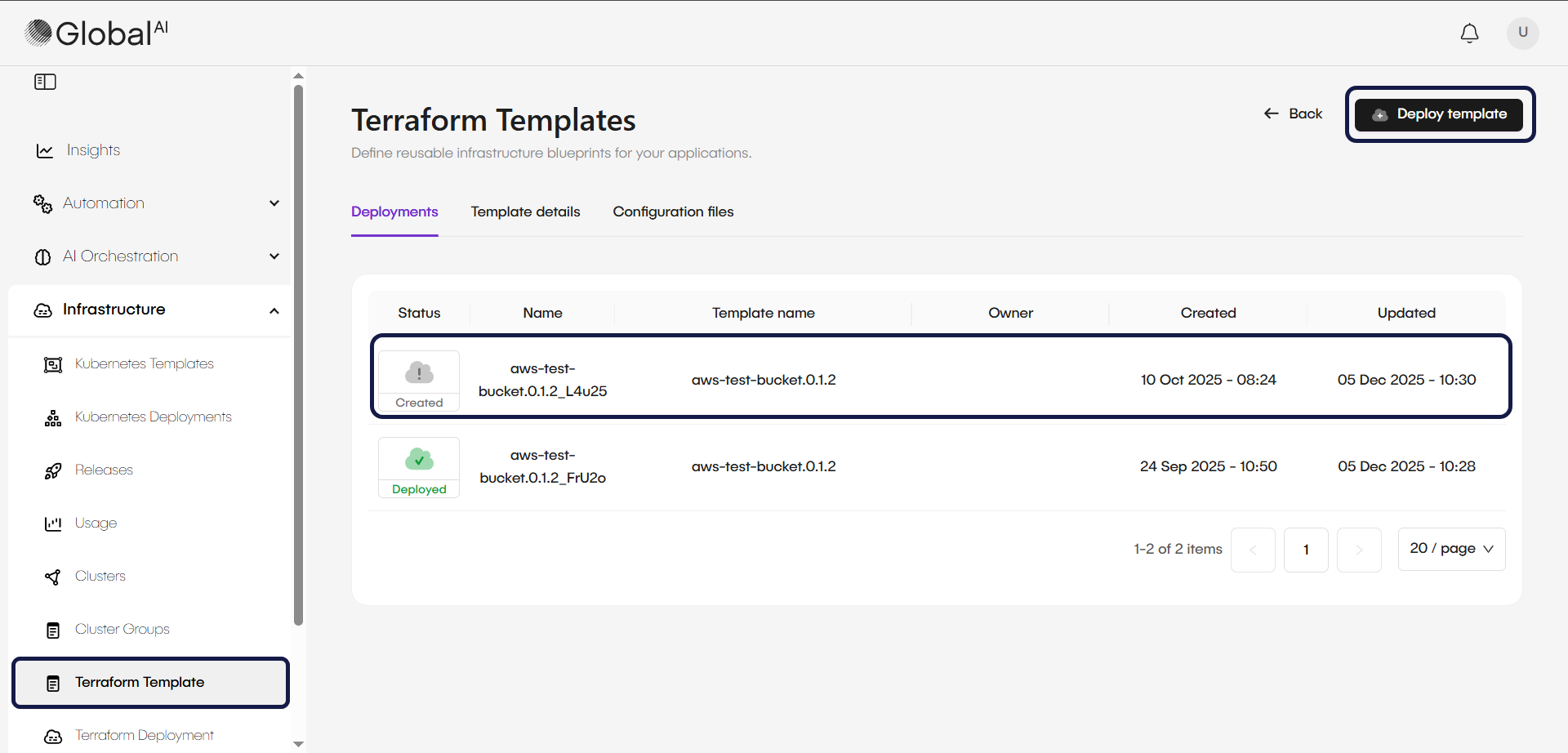
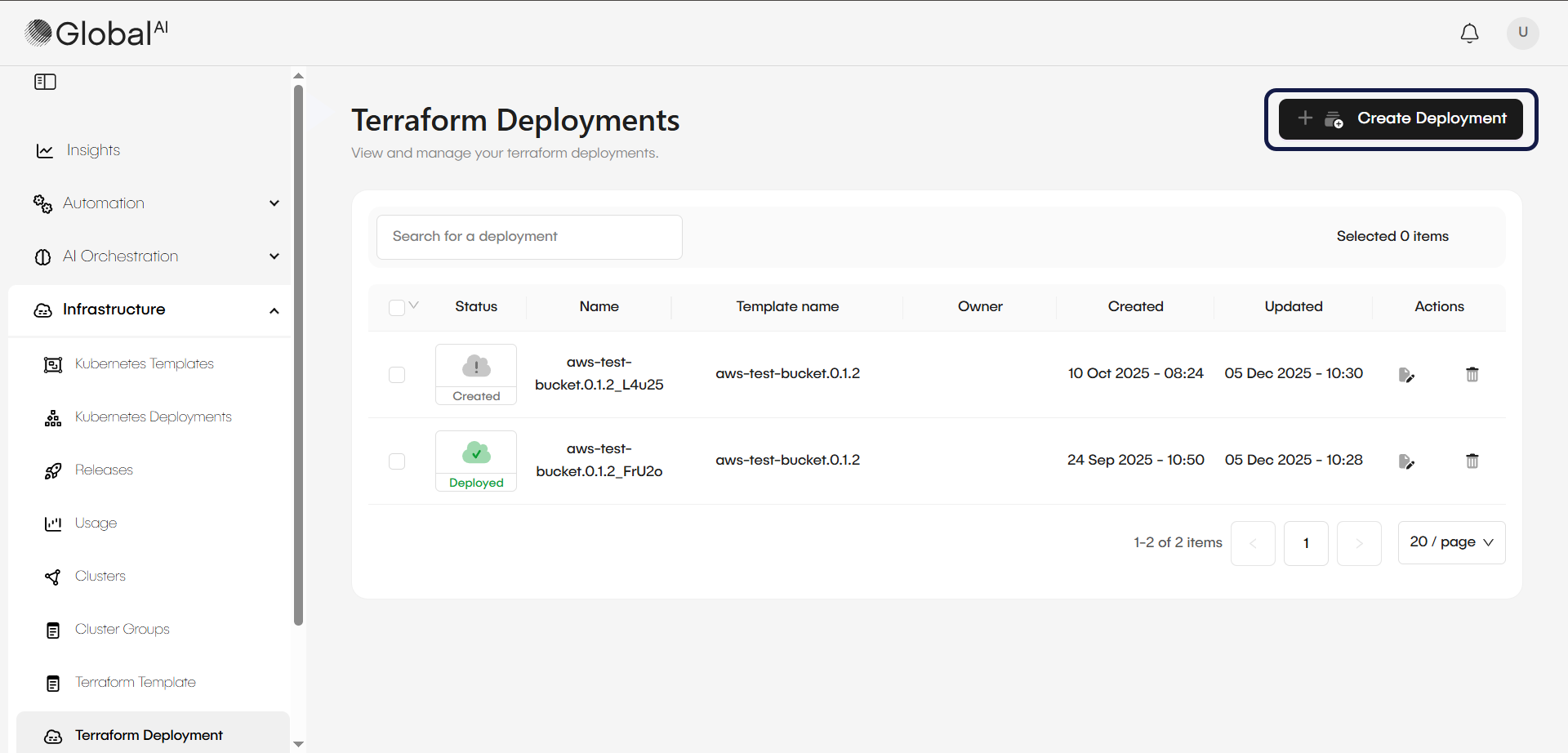
- From a the Terraform Deployments page: Navigate to Infrastructure > Terraform Deployment and click Create Deployment. This allows you to select a template from the list to start a new instance.
Deploy infrastructure
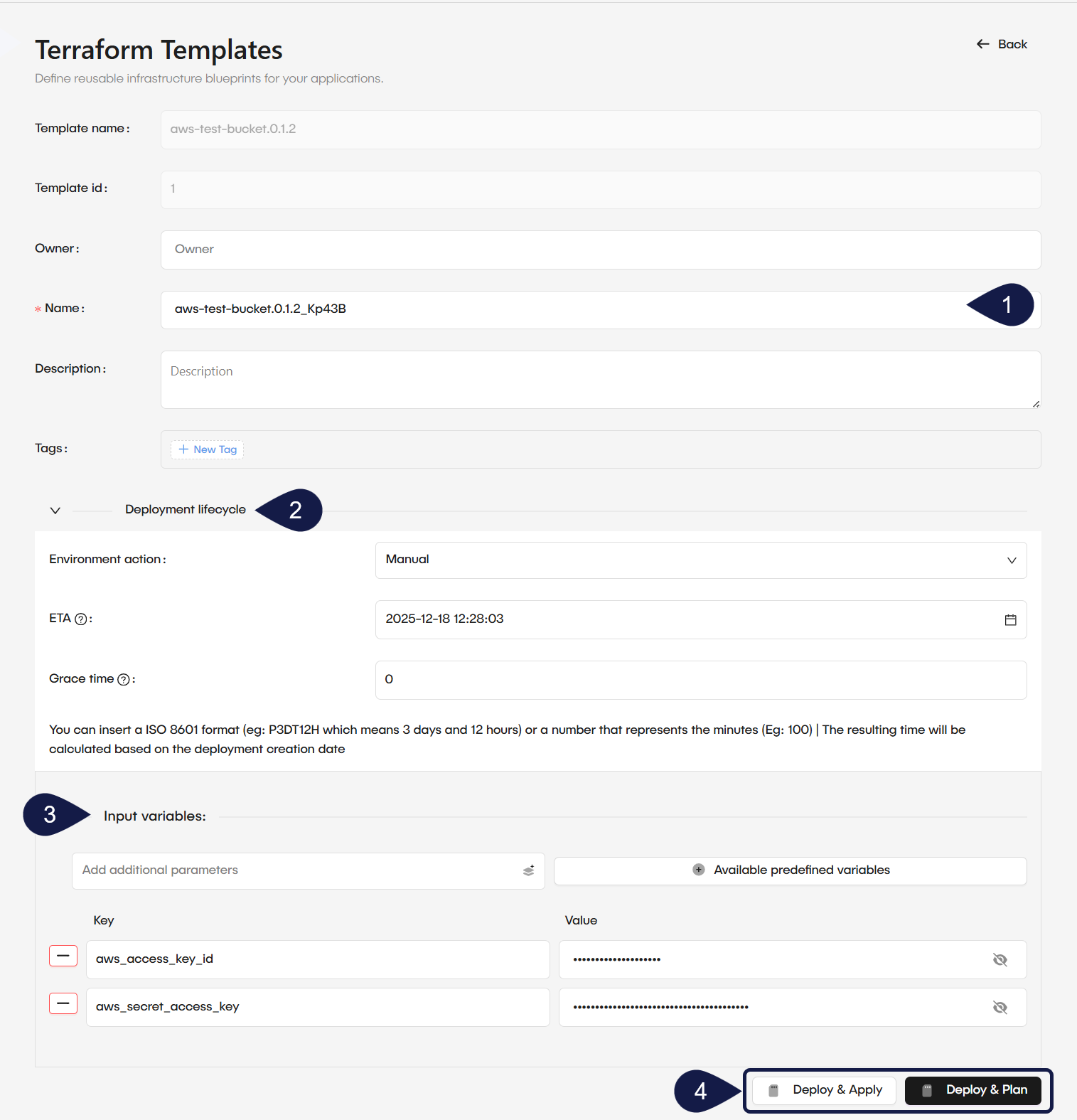
Once you have initiated a deployment, configure the following details to provision your resources:
- Start completing the deployment metadata:
- Name: Enter a unique name for your deployment.
- Description: Provide a brief summary of the deployment's purpose.
- Tags: Add optional tags to help organize and filter your deployments in the future.
- Configure the Deployment lifecycle. Manage how long your resources remain active by defining the Environment action and configuring timing settings:
- Environment action: Select the primary lifecycle behavior for your deployment.
- Manual: The deployment remains active until you delete it manually.
- Terminate: The deployment is automatically removed after the configured Default time, plus any Grace time.
- ETA (Expiration Time): Specify the exact date and time when the deployment should be terminated. While a default time is provided, you can customize this to fit your specific project needs
- Grace time: Set a waiting period in minutes or ISO 8601 format (for example, PT30M for 30 minutes). This period delays the termination action after the ETA expires
-
Configure the Input variables as required by the template. You can use values from the Vault for sensitive credentials.
-
Select your deployment execution method:
- Deploy & Plan: Generates a Terraform execution plan without making changes. Use this to preview exactly which resources will be created, modified, or removed in the Details console logs.
- Deploy & Apply: Immediately starts the provisioning process based on the template configuration.
Check for drift
Configuration drift occurs when the actual state of your infrastructure differs from the configuration defined in the Terraform template. This typically happens when resources are modified outside of the GlobalAI platform.
To detect and reconcile drift:
- Navigate to the specific deployment you want to check.
- Click Check for drift.
- GlobalAI generates a new plan highlighting the differences between the live environment and the template.
- Review the plan in the console logs.
- If changes are detected, click Apply to reconcile the infrastructure and maintain consistency.
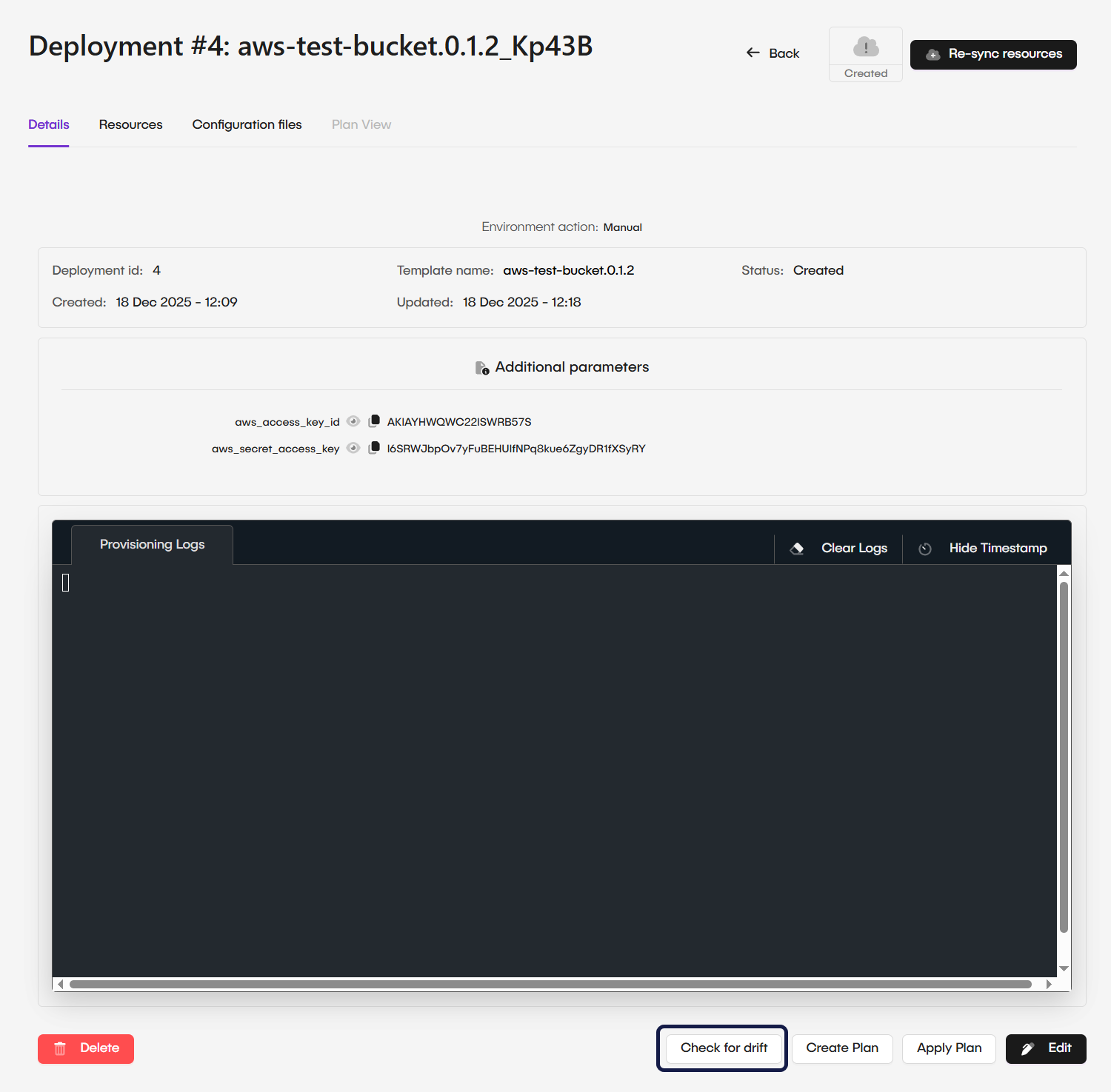
Always review the Plan output in the Details console. It shows a live-updated log of every resource action before the infrastructure is modified.
Related articles
Now that you know how to provision infrastructure and handle drift, you can explore these related guides.
Predefined Variables
Learn how predefined variables work in GlobalAI and how to use them to generate dynamic values in infrastructure configurations.
Add a Cluster on GlobalAI
Connect and configure the Kubernetes clusters where your infrastructure runs.
View Usage Metrics
Track cost and resource consumption for Terraform deployments.