How to Connect an External Database
In GlobalAI, actions act as reusable components that encapsulate specific functionalities or tasks within your workflows. Creating specialized actions enables you to tailor the automation capabilities to your specific needs, helping you streamline processes and improve efficiency. This guide will walk you through the steps to connect an external database using GlobalAI actions.
Create a database connection
To create a database connection, follow these steps:
- On the GlobalAI dashboard, select Workflows from the sidebar.
- On the Workflows screen, select the workflow you want to use it.
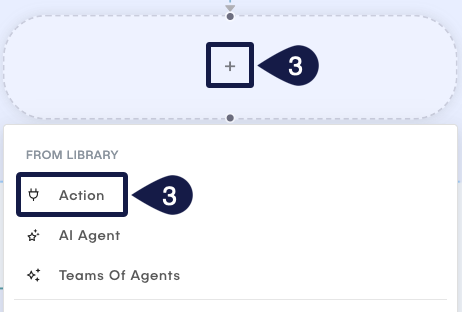
- On the Visual Editor, click the + button and select Action.
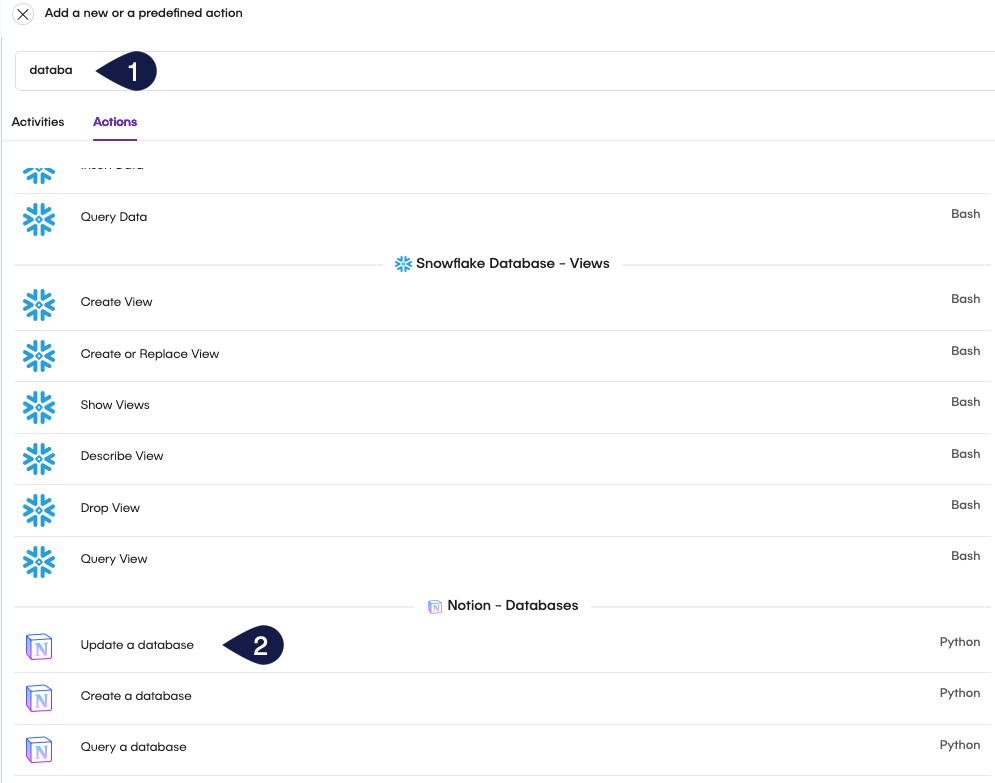
- Select the Actions tab and search for database actions using the search bar.
- Select the database action you want to use and click Add. For example, you can choose Notion update a database.
- Back on the Visual Editor, click on the node to open the action configuration panel.
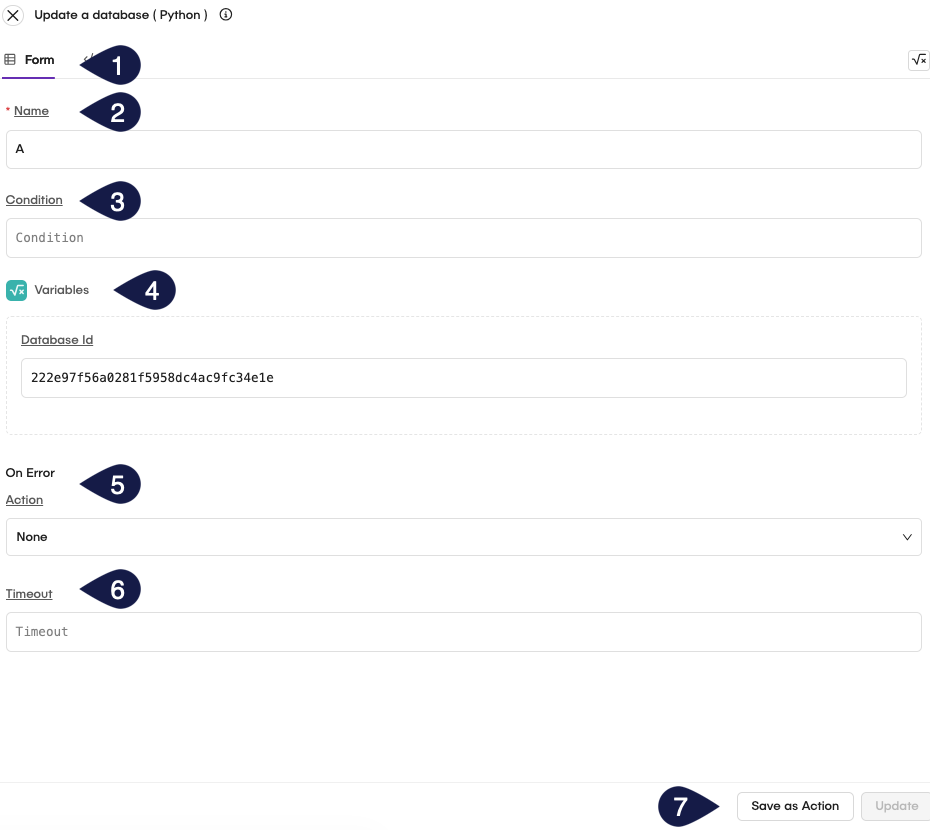
- On the Update a database form, fill the parameters:
- Name: Enter a name for the database connection.
- Condition: Enter a condition for the database connection.
- Variables: Enter the variables for the database connection.
- On Error: Enter the action to perform when an error occurs.
- Retry: Retry the action a specified number of times.
- Skip: Skip the action and continue with the next action.
- Abort: Abort the workflow and stop execution.
- Timeout: Set a timeout for the action.
- If you choose the timeout, specify the value, in seconds, for the timeout.
- To configure the parameters for Notion, enter the Code tab.
- On the Code tab, you will have the following code:
import requests
import json

# ============= CONFIGURATION =============
# Put your Notion API key here
NOTION_API_KEY = "${{ __ka.integrations.notion_api_key }}"

DATABASE_ID = "your-database-id"
# ============= MAIN CODE =============

data = {
    "title": [
        {
            "text": {
                "content": "Updated Database Name"
            }
        }
    ]
}

# Make request
url = f"https://api.notion.com/v1/databases/{DATABASE_ID}"
headers = {
    "Authorization": f"Bearer {NOTION_API_KEY}",
    "Content-Type": "application/json",
    "Notion-Version": "2022-06-28"
}

response = requests.patch(url, headers=headers, json=data)

# Print result
print(f"Status: {response.status_code}")
print(response.json())
- To configure the Notion database update, provide the following information:
NOTION_API_KEY: Enter the API key for Notion.DATABASE_ID: Enter the ID of the database in Notion.
- Click on Update to save the configuration or Save as Action to save as a new action.
To configure the Notion database connection, make sure to provide the DATABASE_ID for the Notion database ID and supply the NOTION_API_KEY to use the environment variables. For more information on setting environment variables, see the how to define variables guide.
Related articles
Now that you have configured the external databases actions, you can proceed to the next steps.
External Databases
Learn about external database integrations and how to connect them within your workflows.
How to Add Nodes to a Workflow
Understand the concept of Nodes in the Global AI platform, which are the fundamental building blocks for creating effective automations.
How to Create a Custom Action
Learn how to implement control flow mechanisms in your workflows for dynamic execution paths.