How to Add and Use a Secret from the Vault
Managing sensitive information securely is crucial in automation workflows. The Global AI platform provides a Vault feature to store and manage secrets such as API keys, passwords, and tokens. This guide will walk you through the process of adding a secret to the Vault and using it in your automations.
Add variables
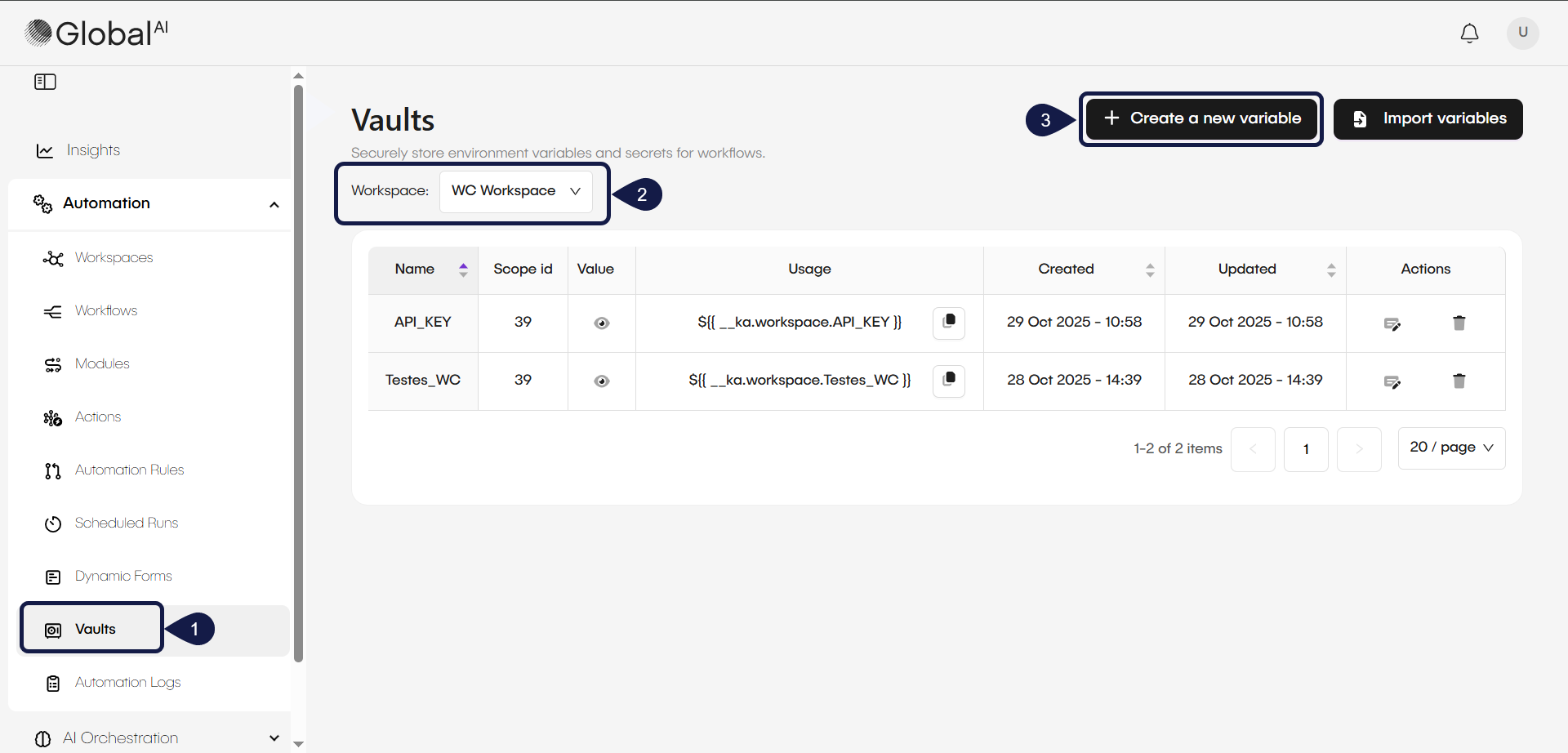
To access the vault and add a new variable, follow these steps:
- In the left menu, expand Automation, and click on Vaults.
- Select the workspace where you want to store your variable.
- In the selected vault, click Create a new variable button.
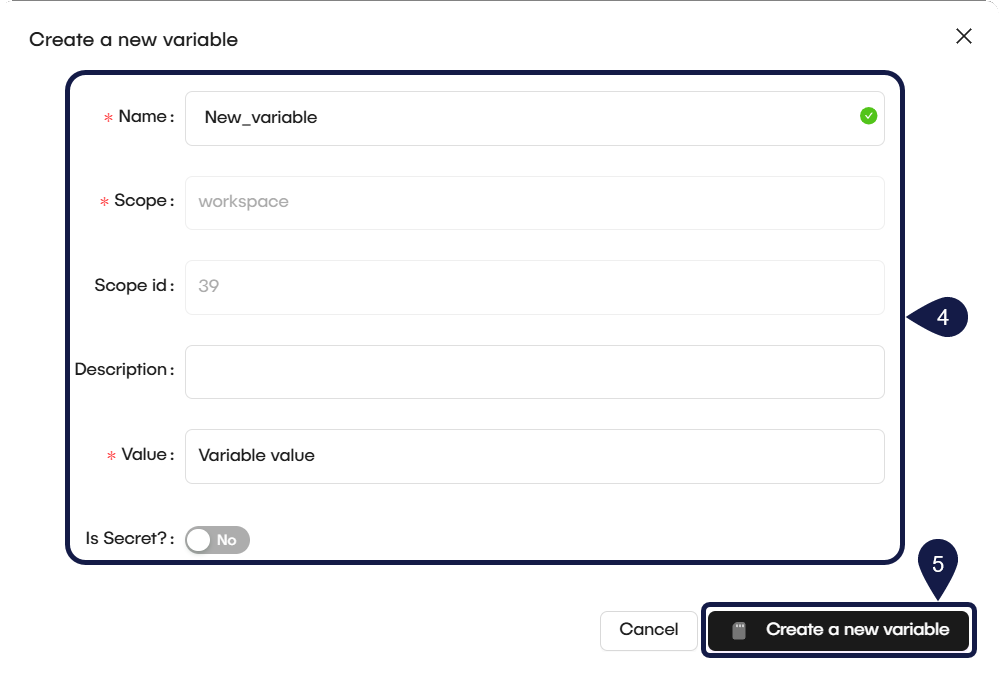
- Fill in the following details:
- Name: Enter a unique name for your variable.
- Scope: This will autopopulate based on your selected Workspace.
- Scope ID: This will autopopulate based on your selected scope.
- Description: Optionally, provide a description for the variable.
- Value: Enter the sensitive information you want to store (for example, API key, password).
- Security toggle: Toggle this option so the system encrypts and hides the value.
- Click Create a new variable to save the secret in the Vault.
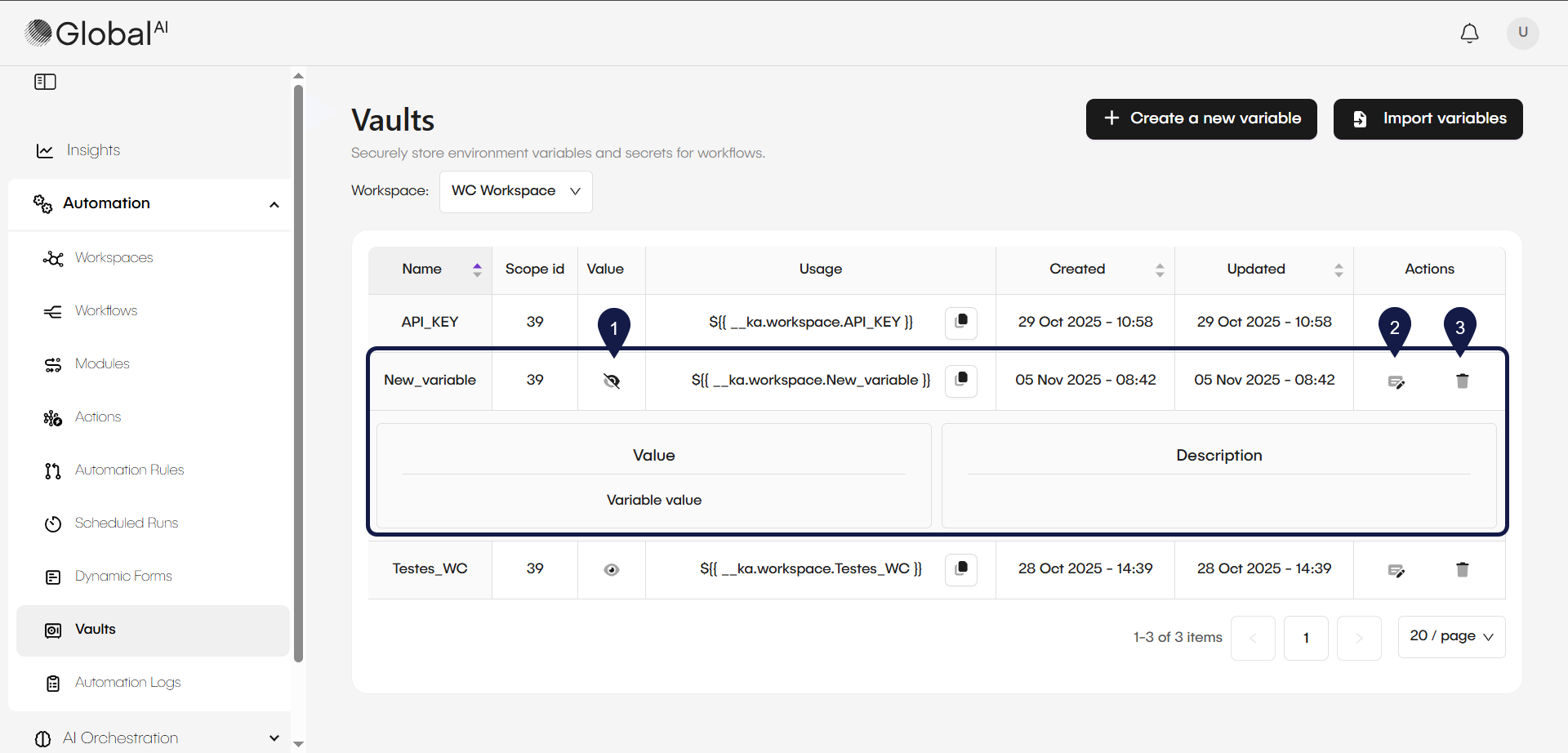
After creating the variable, you will see it listed in the Vault with its name and description. The system hides the actual value to maintain security.
Manage your secrets
- To view the value of your secret, or any other secret, click the View button on the Value column.
When you mark the secret with the security toggle, you won't see the value after creation for security reasons.
- To edit the secret, click the Edit button on the Actions column.
- To delete the secret, click the Delete button on the Actions column.
Import variables
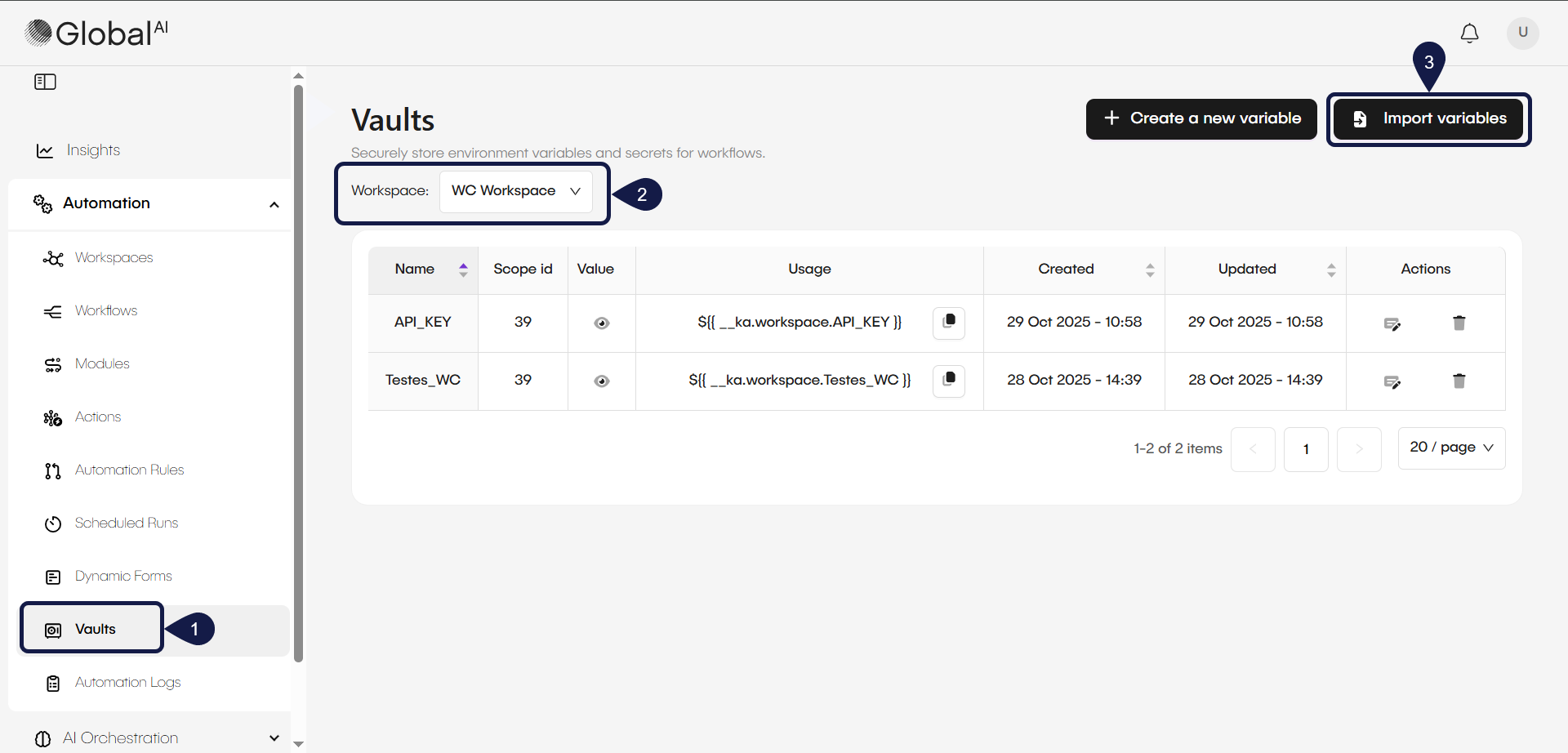
To import variables into the Vault from a JSON or CSV file, follow these steps:
- In the left menu, expand Automation, and click on Vaults.
- Select the workspace where you want to import your variables.
- In the selected vault, click the Import Variables button.
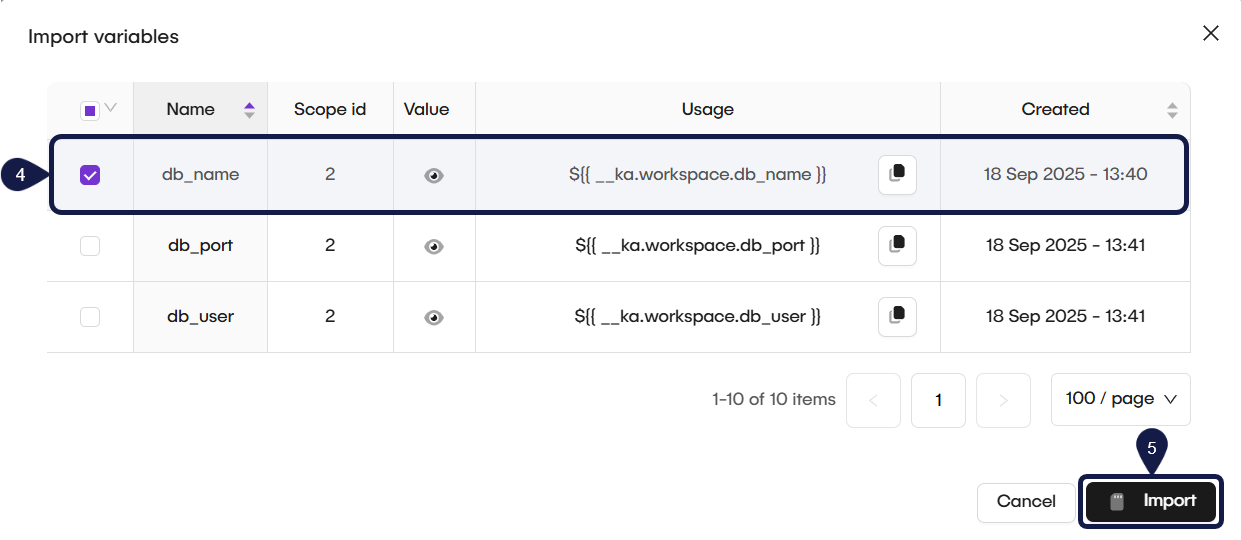
- In the import modal, select the variables you want to import. The variables appear in a list format.
- Click the Import button to add the selected variables to the Vault.
After importing, the variables will be listed in the Vault with their names and descriptions.
Use the secret in workflows
To use your stored secrets in a workflow, follow these steps:
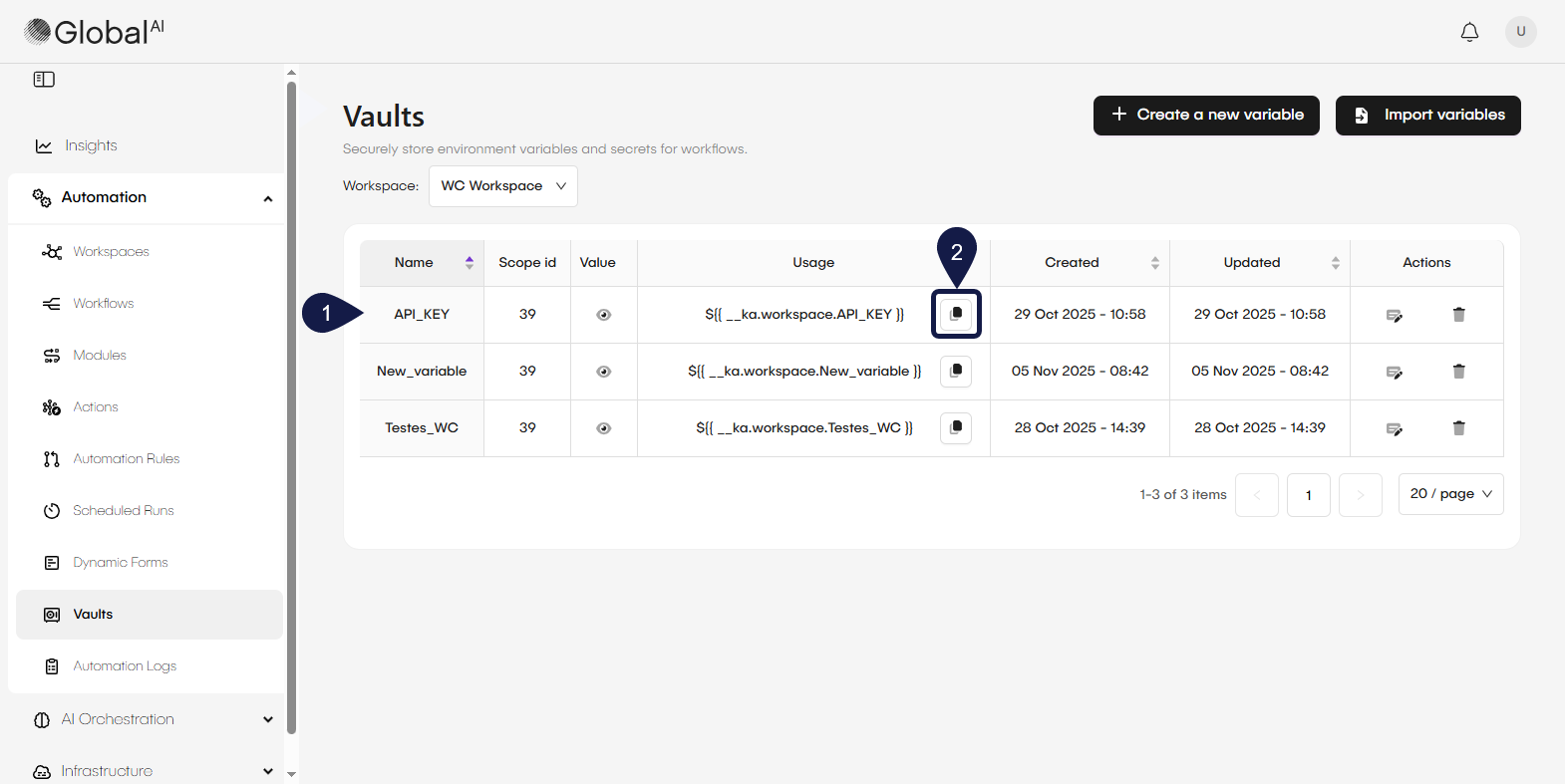
- On the Vaults page, locate the secret you want to use.
- On the Usage column, click the copy button to copy the variable syntax to your clipboard.
- The syntax will be in the format
${{ vault.variable_name }}.
- The syntax will be in the format
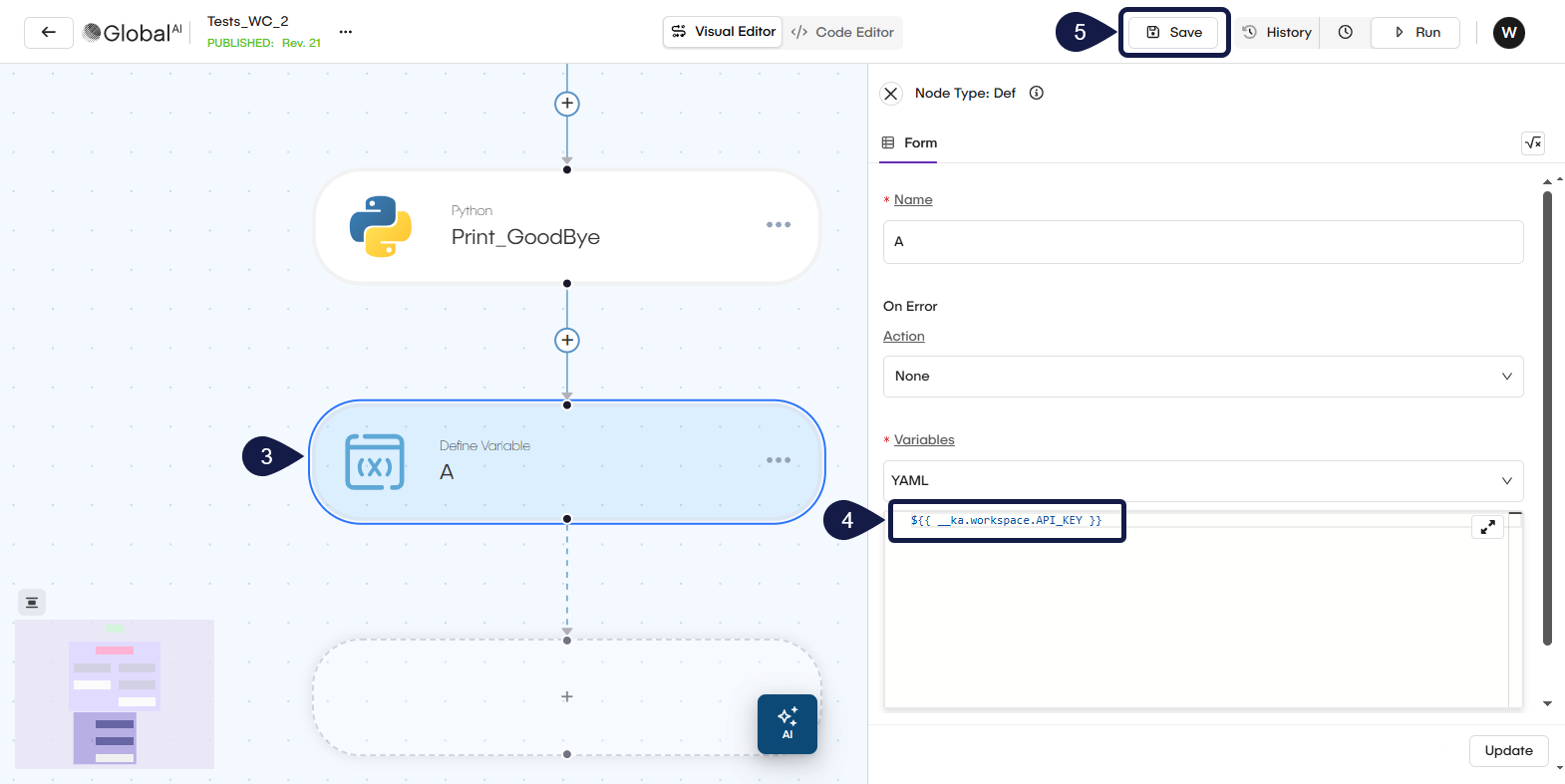
- Open the workflow where you want to use the secret.
- In the node where you want to use the secret (for example, a
bashorpythonnode), paste the copied syntax into the script or configuration field where the secret is needed, like this:
echo "My secret is: ${{ vault.my_secret }}"
- Save and execute the workflow. The system will replace the variable syntax with the actual secret value during execution.
- Ensure that the workflow has the necessary permissions to access the Vault and the specific workspace where the secret is stored.
- Always handle secrets with care and avoid exposing them in logs or outputs.
Related articles
Now that you know how to add and use secrets from the Vault, you can explore more about environment management and security in the Global AI platform.