How to Use an AI Agent in a Workflow
AI Agents help you build powerful, specialized assistants you can integrate directly into your GlobalAI automations. More than just a chat-based assistant, an AI Agent is a model you can customize with a distinct purpose, a curated knowledge base, and a specific set of tools. This enables the agent to perform targeted tasks, provide expert advice, and interact with users in a more meaningful way.
Add an AI agent to your Workflow
To add an AI Agent to your workflow, follow these steps:
- Access the GlobalAI dashboard and select Workflows
- Choose an existing workflow or create a new one by clicking Create Workflow
- In the workflow editor, click on the + icon to add a new step.
- From the list of available actions, select AI Agent.
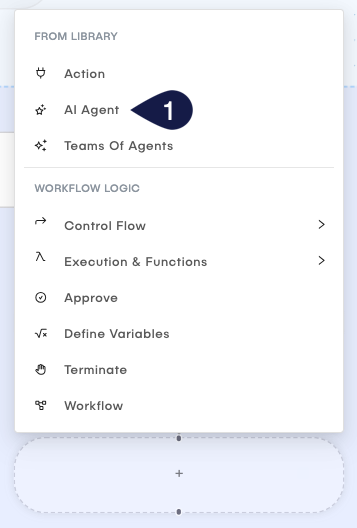
- On the AI Agents panel, select the AI Agent you want to use.
- You can use the search bar to find a specific agent.
- You can also create a new AI Agent by selecting Create New Agent.
- Configure the selected AI Agent by setting its parameters and options as needed:
- Name: Give your AI Agent step a descriptive name.
- Condition: Set conditions for when this step should execute.\
- On Error: Define how the workflow should handle errors that occur during the execution of this step:
- None: Ignore errors and continue.
- Retry: Attempt to execute the step again.
- If you choose the Retry option, you will need to specify how many times the system should retry the step before failing.
- Skip: Skip this step and continue with the next one.
Configure a new AI Agent
For a new agent, you will need to define its Tools, Memory and Knowledge.
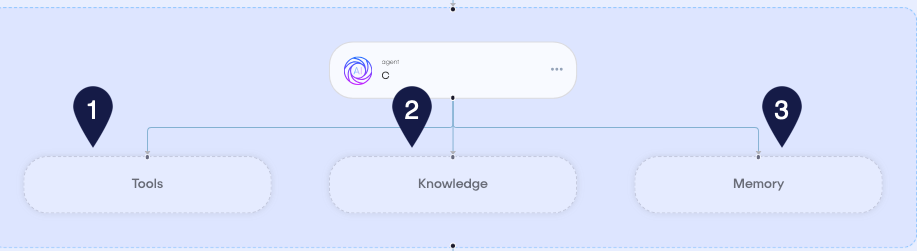
- For every field, you can click on the field and select the resource you want to use from the list of available resources in your GlobalAI account. For example:
- For Tools
CalculatorTools,BrowserbaseTools, and many others. - For Memory you will have to select a memory resource you have created before, a database that will store the agent's memory.
- For Knowledge you can select a knowledge base resource you have created before, such as a document or a set of documents that the agent will use to answer questions.
- For Tools
- Once you have configured the AI Agent node, click Save to add it to your workflow.
Related articles
Now that you know how to add an AI Agent to your workflow, you might want to learn more about: